Orders and Processing
Last updated: August 8, 2026
Overview
The Orders section is where you view, search, and manage all ticket purchases for your events. This article covers how to find orders, process new orders on behalf of buyers, and handle common order scenarios.
For a broader overview, see Managing Sales and Orders.
Viewing and Searching Orders
The orders list shows all ticket purchases for your events. You can search by:
- Order number — the unique identifier for each transaction
- Buyer name or email address
- Event — filter orders by specific event
Each order record shows the buyer's information, tickets purchased, payment amount, and order status.
Purchasing Tickets Online
The self-service buyer flow starts on your event page, where attendees see available ticket types, prices, and dates. The buyer chooses ticket type and quantity, completes any attached surveys or waivers, enters contact info (email is required for ticket delivery), enters payment via credit card, and receives a confirmation email with their tickets. Everything the customer needs ships in one email with no staff involvement required.
Processing a Standard Staff Order
When a customer buys over the phone or at the box office for a single event, a logged-in staff member processes it using the staff checkout. This is the right path for straightforward "one event, one set of tickets" situations.
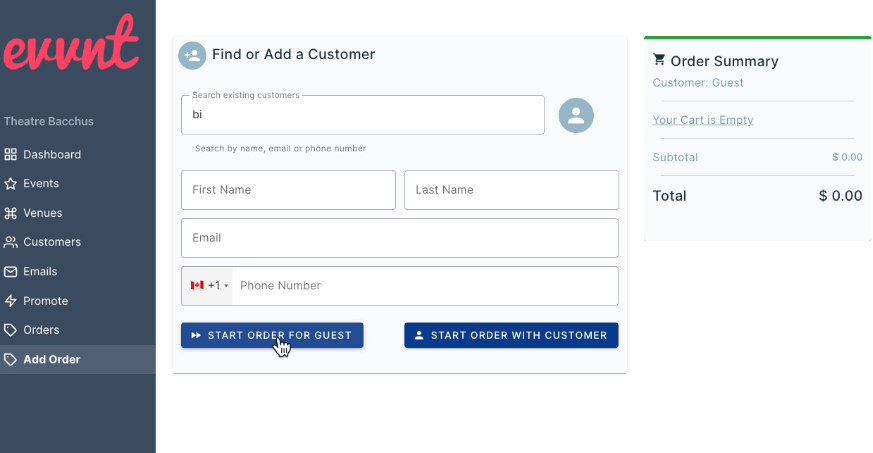
Staff can look up existing customers by name or start a guest checkout, select the tickets and quantity, apply any active promo code, and process payment via credit card, cash, or check. You also have an option to "Comp" the order to process a ticket order at no cost to anyone. Once the order is placed, the customer receives the same email confirmation as if they'd purchased online.
Staff Order Options
A few options are available only when an order is being processed by a staff member through the admin:
- Show all — by default, the Add Order ticket list respects each ticket's sales start and end dates, so tickets outside their window won't appear. Toggle Show all to override this and see every ticket in the event regardless of its sales window. This is useful for handling special cases like processing a sale before the on-sale date or after sales have closed.
- Comp Order — toggle this on at the payment step to process the order at $0 with no fees. Use this for sponsor tickets, staff comps, or any other order that should be free.
- Required permission — portal users need to be scoped into the organization to process orders. Org users have access by default.
Box Office Processing Fee
Orders processed through the admin Add Order workflow are subject to a separate box office processing fee, distinct from the standard online ticket fee. You can see the rates that apply to your organization under your Settings page.
Common Order Scenarios
- Wrong date or time — if a buyer purchased for the wrong date, you can process an exchange (see Refunds, Exchanges, and Cancellations). Buyers can also email tickets@evvnt.com directly to request an even money exchange if they prefer to contact support.
- Stuck processing — if an order appears stuck or incomplete, check the order status and payment status in the order details. Contact your site partner if the issue persists.
-
Multiple events in one cart** — In most cases, each event is a separate purchase. The platform does not support shopping cart-style purchases across multiple events in a single transaction for online customer purchases.
- **This is available to staff or admin users (see below).
Process Tickets for Multiple Events in One Order
For anything a standard order can't handle — season passes, multi-date packages, bundled pricing — staff use the custom order builder under Add Order in the left-hand menu. This is the tool for orders that span more than one event or need non-standard pricing.
Start by looking up an existing customer by name, email, or phone number, or begin a guest checkout if the customer is new.
Once the order is started, open the Tickets tab and pick an event from the Select Event dropdown. Choose the ticket type and quantity, then set the delivery method (E-Tickets or Print Now). The event and ticket count appear in the Order Summary on the right.
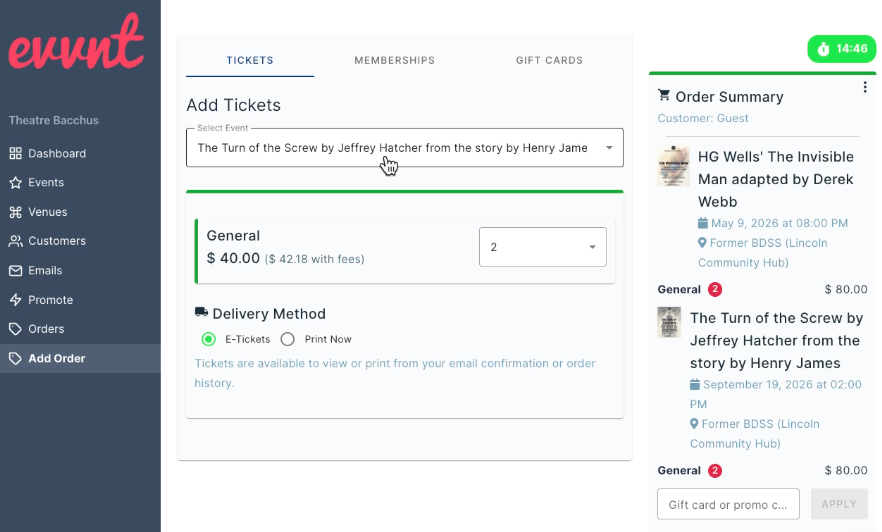
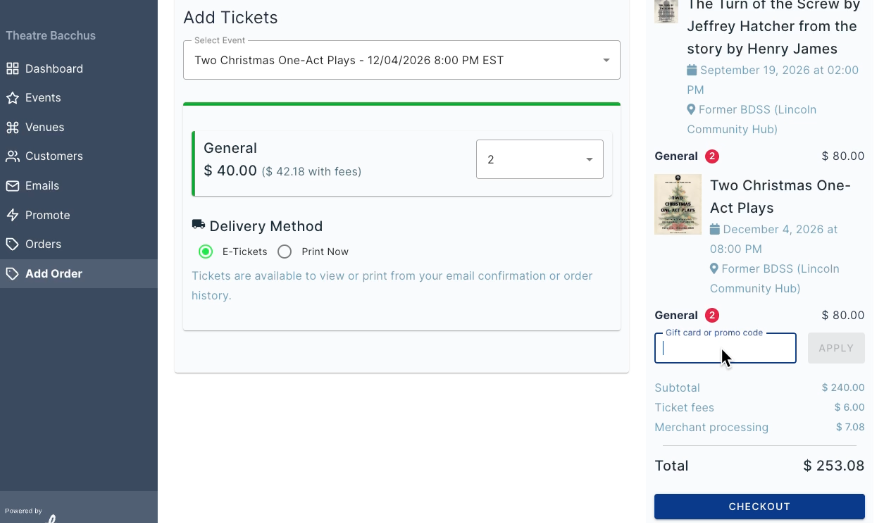
To build a package, select additional events from the same Select Event dropdown. Each event you add stacks into the same order summary — you can combine as many events and dates as the customer needs.
When the full package is in the cart, apply a pre-configured promo code that provides a discount for the situation. For example, a season pass promo code may take a percentage off all tickets to provide the desired discounted price. Codes adjust the total by a set dollar amount or percentage, depending on how they are configured before use.
Continue to the checkout step, which collects contact information and payment. Because this is a staff checkout, you can accept card, cash, or check, or flip the Comp Order toggle for a fully complimentary order. The customer's name and email address is required as it's how the tickets are delivered after the order is placed.
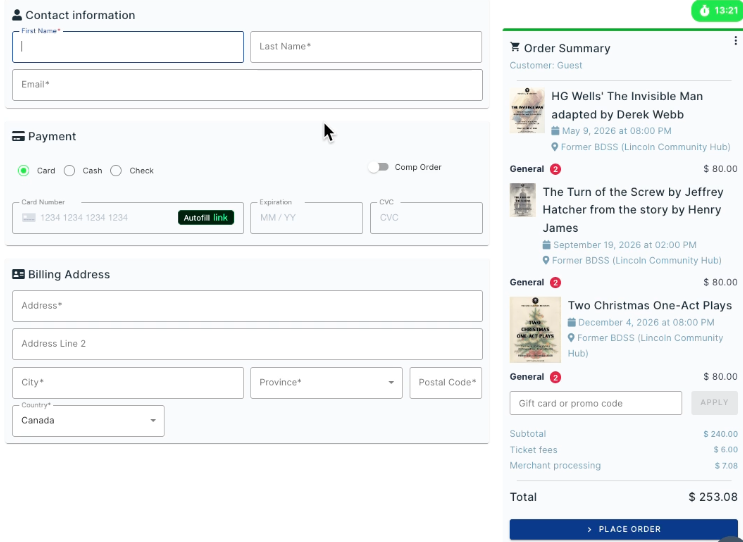
The entire package processes as a single transaction, so the buyer receives one email confirmation covering every ticket in the order.