Understanding how visitors find and interact with your ticketing pages helps you make smarter marketing decisions. The Evvnt platform supports integration with Google Analytics (GA4) and Meta Pixel for tracking visitor behavior, conversions, and advertising performance on your event pages.
For a broader overview, see Marketing and Integrations.
Google Analytics (GA4)
Connecting Google Analytics to your ticketing pages gives you visibility into:
-
Traffic sources — where your visitors are coming from (search, social, direct, referral)
-
Conversion rates — how many visitors complete a ticket purchase
-
User behavior — how visitors navigate your event pages and where they drop off
Analytics tracking is configured at the site level by your site partner. Once enabled, data flows into your Google Analytics property automatically.
Custom Dimensions and Metrics
For advanced tracking, the platform supports custom dimensions and metrics in Google Analytics. These let you track event-specific data points — such as which events generate the most page views, which ticket types are viewed most, or how different marketing campaigns perform across events. Custom dimensions require configuration in both Google Analytics and the ticketing platform.
Meta Pixel
The Meta Pixel (formerly Facebook Pixel) tracks visitor activity on your ticketing pages and connects that data to your Meta advertising account. This lets you:
- Measure the effectiveness of Facebook and Instagram ads that drive traffic to your ticket page
- Build retargeting audiences based on people who visited your event page but didn't purchase
- Optimize your ad delivery based on actual conversion data
Like Google Analytics, the Meta Pixel is configured at the site level by your site partner.
Getting Started with Analytics
Analytics tracking is set up at the site level — if you don't see data flowing into your analytics tools, contact your site partner to confirm that tracking is enabled for your ticketing site. You'll need to provide your Google Measurement ID or Meta Pixel ID to your site partner for configuration.
How to Add a Measurement ID
Evvnt provides event creators and their partners with the ability to measure the acquisition, behavior, and conversion rates of various campaigns using Google Analytics 4 (GA4) and Meta Pixels.
Selling tickets to an event requires the event creator to first build awareness and interest in the minds of potential attendees. In digital marketing, this “customer acquisition” is accomplished by running campaigns using various channels such as event calendar syndication, email marketing, social media ads, or search ads amongst other options. In response to these campaigns, potential attendees visit the event website pages to learn more about the event. This “behavior” is important to encourage so that website visitors eventually decide to purchase tickets. The “conversion” of a potential attendee to an actual attendee is a metric that is very important to event creators and marketers.
By using GA4 and Meta Pixels, event creators can -
- Sell more tickets and increase attendance to events
- Understand which campaigns are more effective in attracting attendees
- Understand where and how marketing budgets should be allocated for events
How can you add analytics to your ticketing pages?
You will need to create a new Data Stream for your ticket domain in GA4. See instructions below.
If you are a site partner/portal user, reach out to tickets@evvnt.com with your GA4 Measurement ID.
Ticketing organizations can enter a GA4 Measurement ID or a Meta Pixel tracking ID into your Organization Settings. The "Tracking & Analytics" option is found at the bottom of the Organization Settings page. Click the pencil to enter your relevant ID. See below for help finding those IDs. See here for more information about accessing your Organization Settings.
Create a new Data Stream for your ticket domain in GA4
To allow your Google Analytics to track visit to your ticketing pages, you need to add a "Data Stream" in your GA4 account. This stream will need to have your ticketing page's domain to be connected. From your Google Analytics dashboard, follow the steps below to create a new Data Stream.
In step 4 below, the URL of your primary website is the domain that host your ticket page. So, for a URL that is https://tickets.domain.com/events/my-event-1-1-2024, the domain for the new "Data Stream" is tickets.domain.com.
The steps below are from Google's support article: [GA4] Set up Analytics for a website and/or app
- In Admin, look at the Account column to make sure that you have your desired account selected. Then, look at the Property column to make sure that you have your desired property selected.
- In the Property column, click Data Streams > Add stream.
- Click the option for "Web".
- Enter the URL of your primary website, e.g., "example.com", and a Stream name, e.g. "Example, Inc. (web stream)".
- You have the option to enable or disable enhanced measurement. Enhanced measurement automatically collects page views and other events. Once the data stream has been created, you can always go back and individually disable the enhanced measurement events you don’t want to collect. So, we recommend that you enable enhanced measurement now.
- Click Create stream.
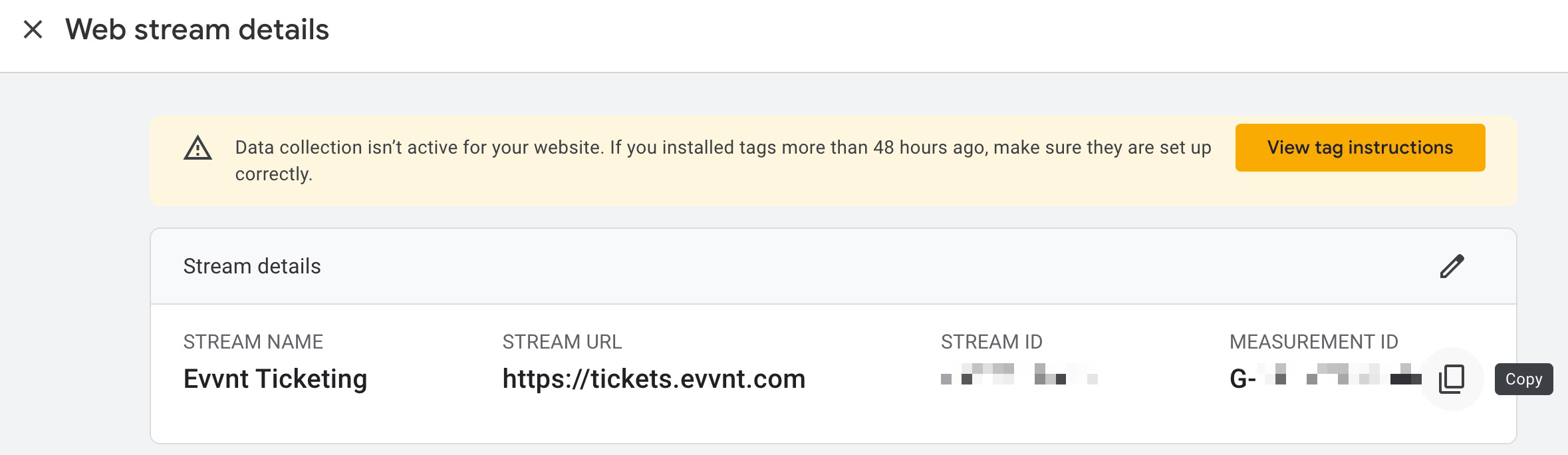
- In the new data stream, look for the "Measurement ID", it should start with "G-".
Reach out to tickets@evvnt.comwith your measurement ID to add tracking services to your ticketing pages.
How do I find my Meta Pixel ID?
If you need to create your Meta Pixel first,
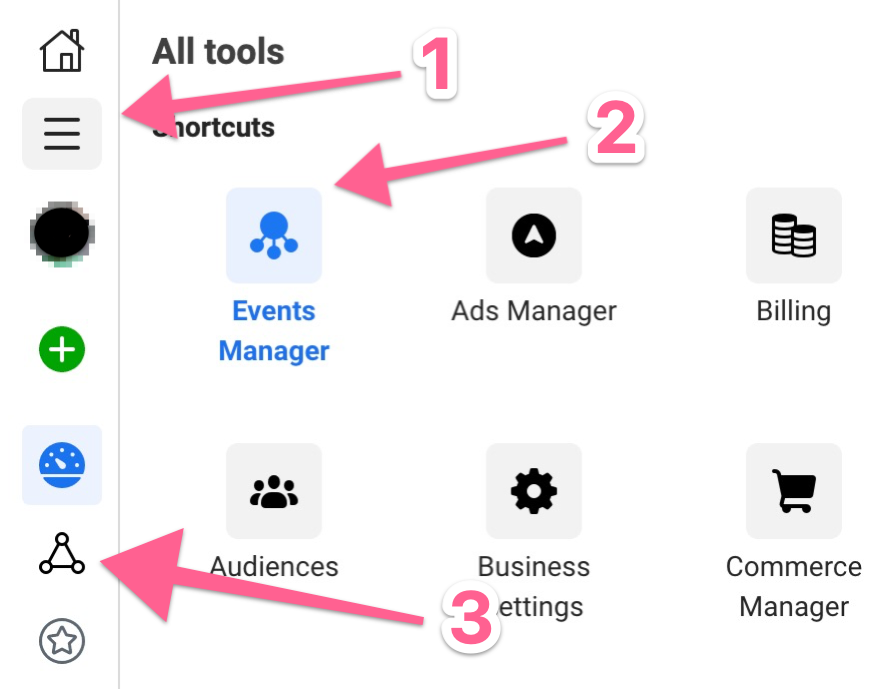
start here. If you've used Facebook Ads before, then you can start by heading to your "Events Manager" from your Facebook Ads dashboard. Then, select the "Data Sources" option from the menu (#3 in this image below).
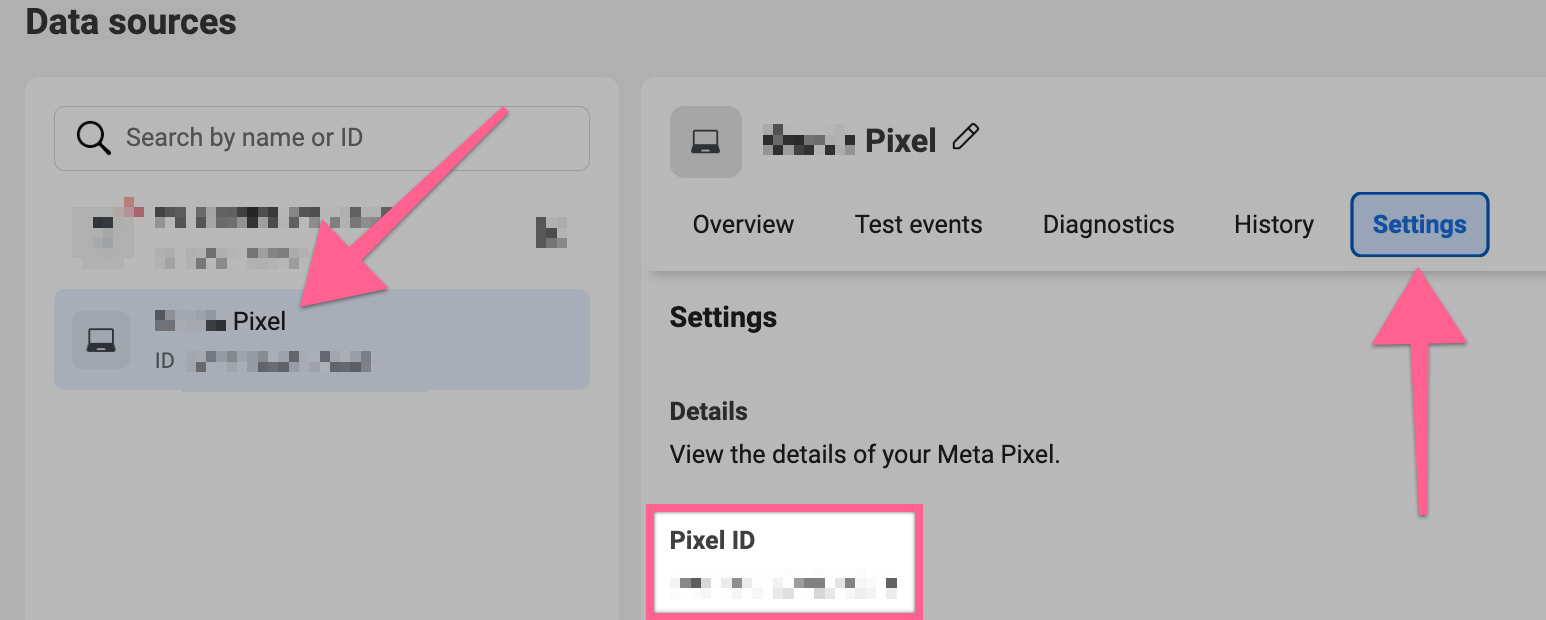
From the Data Sources section, you can find your pixel ID. To easily copy it, click on the pixel and look for the "Settings" section. There is a spot to click to copy the ID for easy pasting into your Organization Settings.
Build Your Tracking URLs
Google has a tool for building tracking URLs to make specific links for different online marketing campaigns. See here for more information.
To find the URL for your event in our system, you can head to the event "Edit" section and look for the "Links" section.
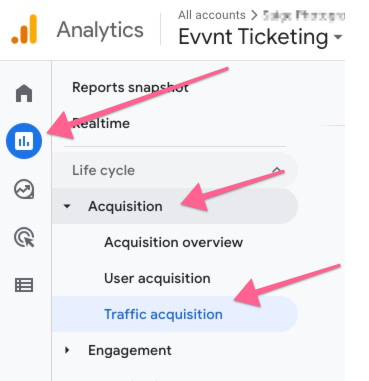
From your GA4 dashboard, you can select to view results from the specific Data Stream you created for your ticketing pages. With that stream selected, you can view "Reports". Navigate to the "Acquisition" and "Traffic Acquisition" sections to see data by campaign or source/medium from any UTM links you may have used. You can see data about page visits and conversions in the "Engagement" section. More info from Google here.