Scanning Tickets with the Evvnt Mobile Box Office App
Last updated: October 24, 2026
Get the Evvnt Mobile Box Office app: iOS App Store | Google Play
You can scan in tickets using the camera on your phone or tablet.
Login to the app and tap Check in at the bottom of the screen.
Choose the event for which you'd like to scan tickets. If the event has different types of tickets, you can limit your scanning to one specific type of ticket.
When a guest arrives with a ticket, simply scan the QR code using your phone's camera. If the scan is successful, a green message will appear on your screen.
To view the entire order and check in all tickets associated with that order, tap View order. To get the full order sheet automatically on every scan, use the Check in orders scan type described below.
If there are additional tickets to check in, simply tap to check them in.
To scan the next ticket, return to the camera view in the Check in tab.
Checking In a Group Order with One Scan
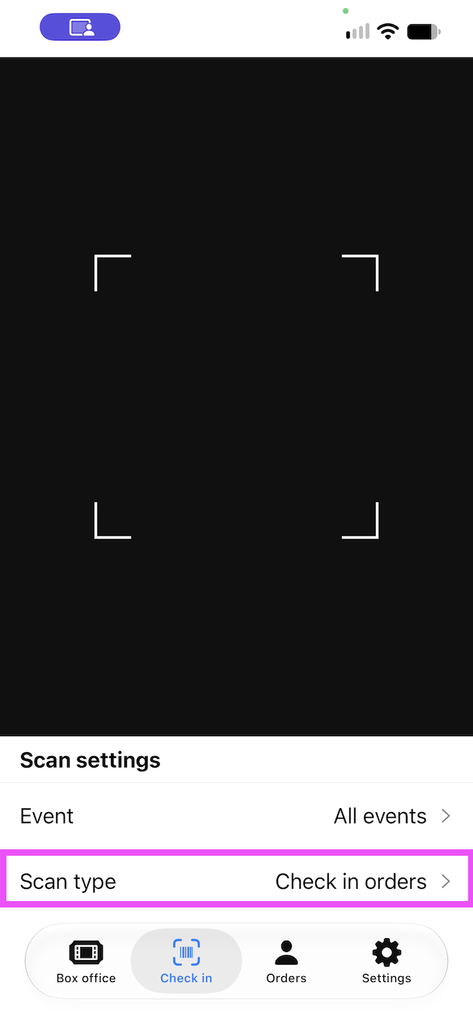
When a group arrives together, you can check in every ticket on their order from a single scan. To do this, set the scan type to Check in orders before you start scanning.
Open the app and tap Check in at the bottom of the screen.
Below the camera view, find Scan settings.
Tap Scan type and choose Check in orders.
Scan any ticket QR code from the order.
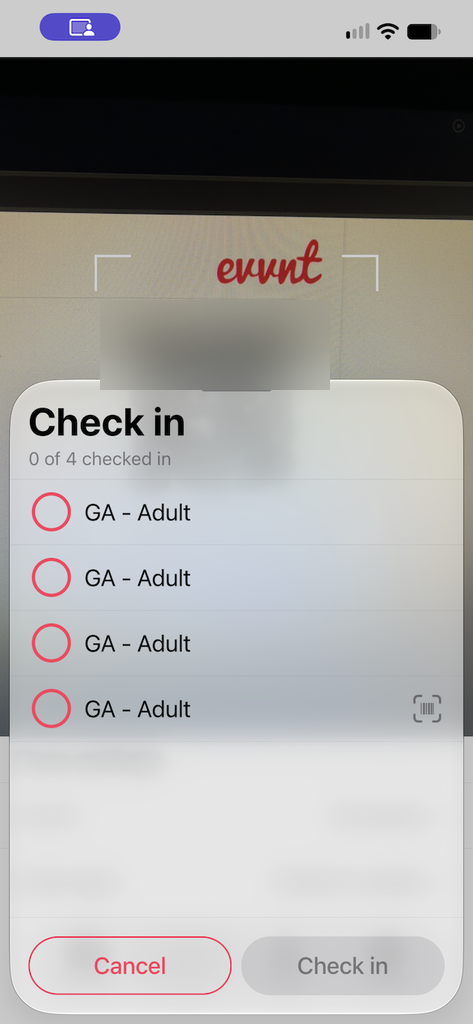
A Check in sheet opens and lists every ticket on that order, for example "0 of 4 checked in".
Tap the circle next to each ticket you want to check in, then tap Check in. Tap Cancel to close the sheet without checking anyone in.
What Happens in Other Scan Types
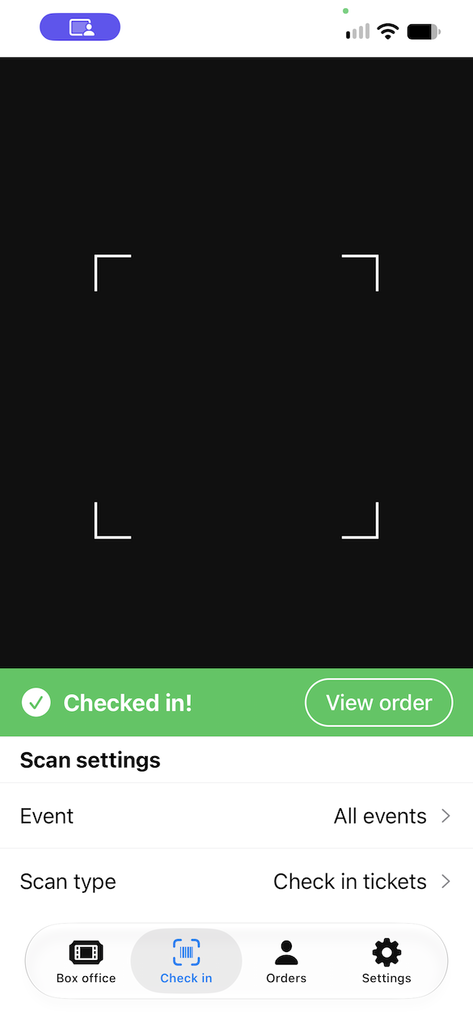
If the scan type is set to anything other than Check in orders, such as Check in tickets, a scan checks in only the ticket you scanned. A brief green Checked in! confirmation appears at the bottom of the camera view, and the order sheet does not open. To see the rest of the order from there, tap View order on the confirmation.
Tips for Successful Scanning:
Be sure to hold your phone steady and aligned with the QR code.
If the app hovers too long, it might try to scan the ticket twice. Watch for a message that says "Ticket Already Checked In" and note the time and date that the initial check-in happened.