How the Sales CRM works!
Last updated: October 21, 2026
Sign-up for our Evvnt Revenue Webinar to learn more about our Sales CRM!
Every event submission turned in to a highly scored lead with information driving a 2 out of 3 sales result based on out reach calls. You can access all your customers, edit their details, review their events, impersonate their accounts and also add packages, you can even create new customers.
Every event submission is linked to a customer and you can now search, find review and impersonate your customers experience to provide insight and exceptional client services. You can also add a package.
Sales CRM
We have built a simple Sales CRM that expects three outputs
- Call No Answer
- Call Not Interested
- Call SALES!!!
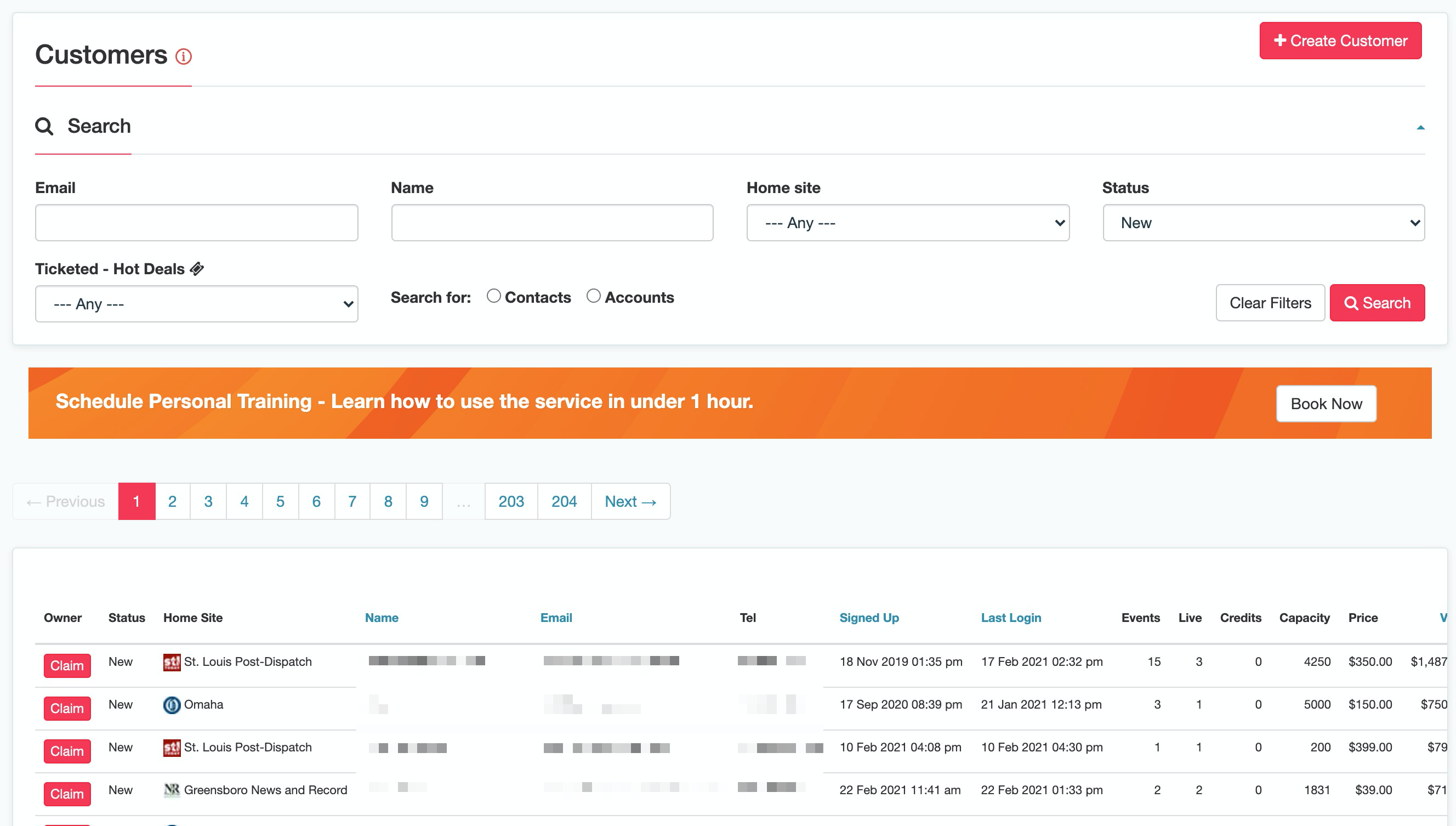
Once logged in to your partner back office then click on customers and see the full list of leads with the following details
- Owner - Claim to start the sales process
- Status - New / Sold / Claimed
- Home Site - Site where they submitted their first event
- Name - Person or Company name
- Email - Users email
- Tel - Telephone number
- Signed up - Date they signed up
- Last login - Date they last logged in
- Events - Number of event submissions
- Live Events - Number of events live
- Credits - No of un-used credits
- Avg Capacity - Capacity of the event
- Max Price - Ticket price
- Value - Capacity x Ticket price
Information the rep needs to ask and collect
- Events / Year - No of events per year they run
- Demo? - Do they want a service demonstration
If sold
- Proposal - Dollar amount of sent proposal
- Premium Single - Premium Single service.
- Premium Sub - Premium Subscription service
- Sales - Sum of all sales
Create Customers - If the customer has not already submitted an event, you can create a new customer in your Sales CRM
Search Functionality
You can also search for leads by email, name, home site, sales status and sort by the various information collected.

START SELLING - CLAIM
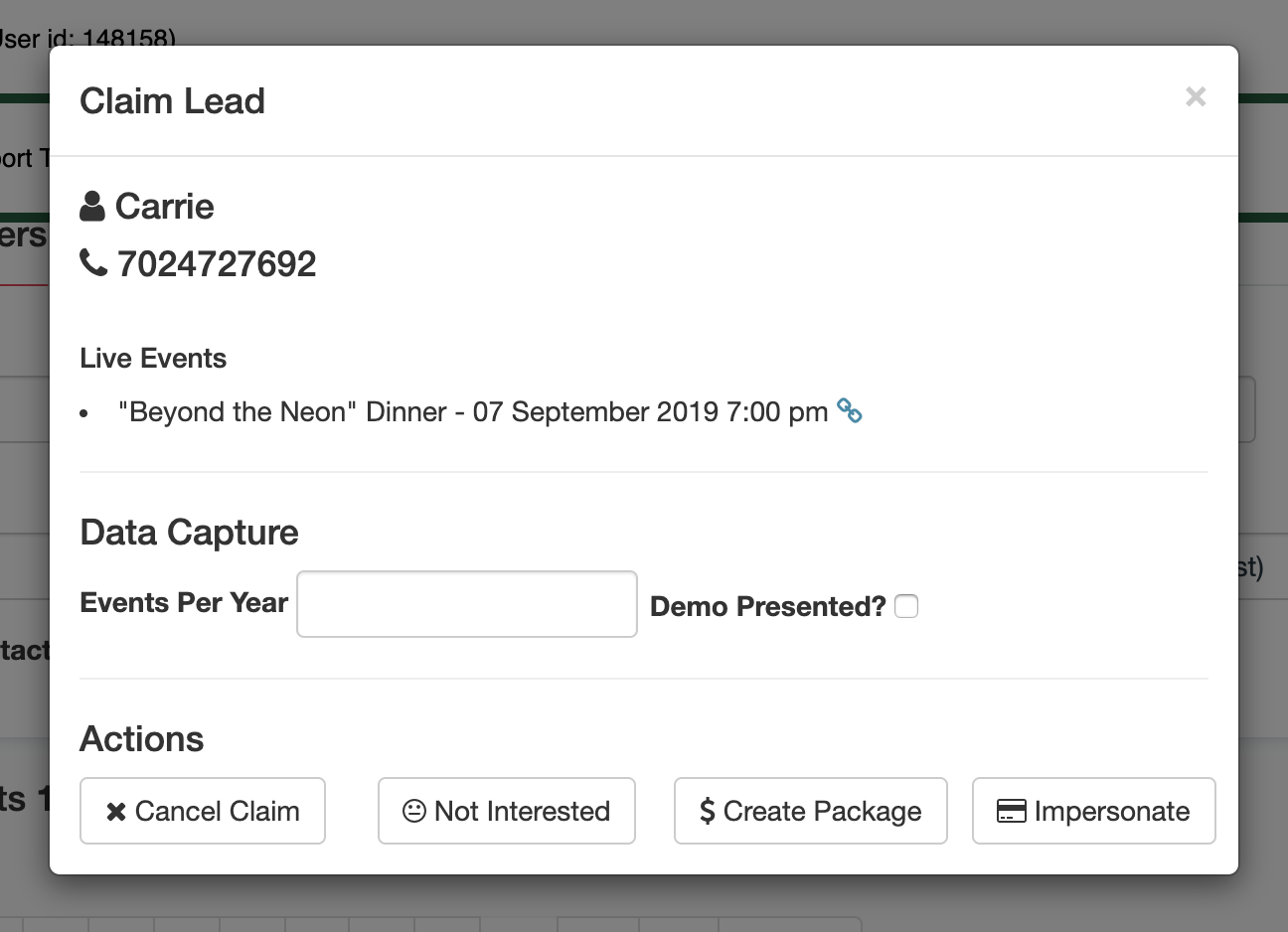
- Click the 'Claim' button
- If a customer shows up in your Sales CRM, then that customer belongs to the partner account. Any salesperson in that partner account can see this list of customers and can "Claim" the lead. This adds a layer of ownership so that the partner account can know the salesperson that may have initiated any package deals for the customer.
- Click the 'Live Event' and read
- Call the lead
- No Answer - Cancel Claim
- Answer - ask two questions
- How many events do you run over 12 months?
- Can I give you a demonstration of service
- If no - Try and sell / Not Interest
- If Yes to Demo - Impersonate and walk customer through the platform
- Exit Impersonate and arrive back here
- SALE!! - CREATE PACKAGE... or
- Mark as Not Interested.
Create Package
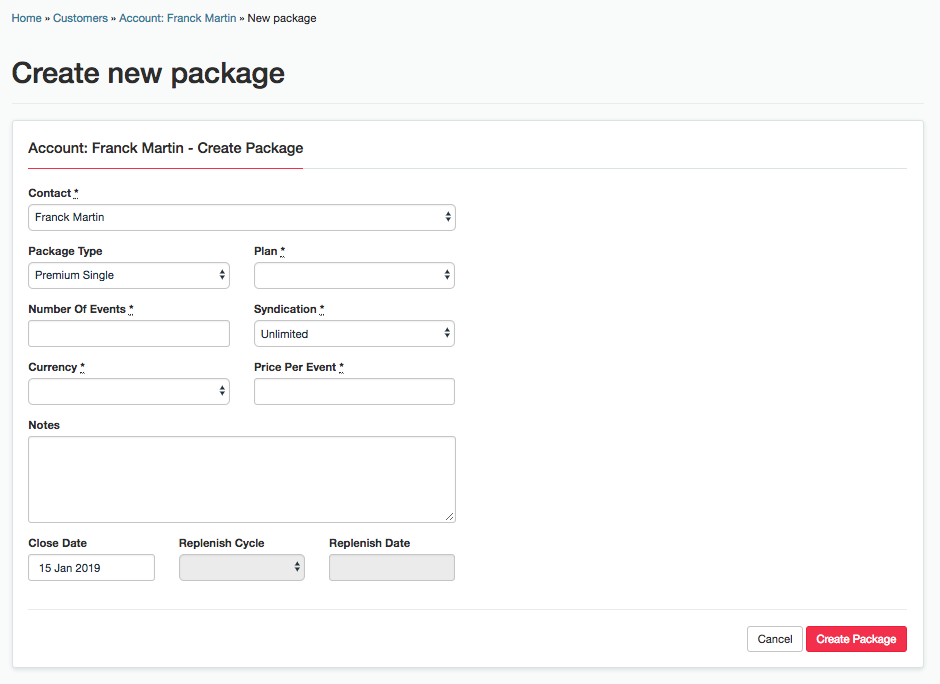
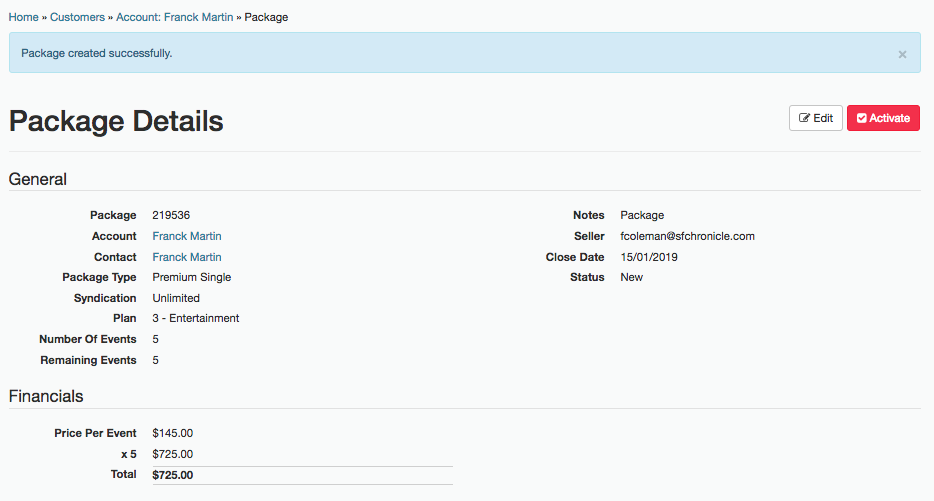
Here we pre fill all the package information we already know about your customer and then ask you to check, adjust and process the order
- Contact - The person you are selling to
- Package Type - Premium Single or Premium Subscription
- Plan - Pick one of the 5 plans
- Number of Events - in the Package
- Syndication - leave at unlimited
- Currency - preset to your local currency
- Price per Event - Cost per event
- Contract Term - 3, 6, 9 & 12 Months
- Discount - based on Premium Single bundles over 10 credits and subscription over 12 months.
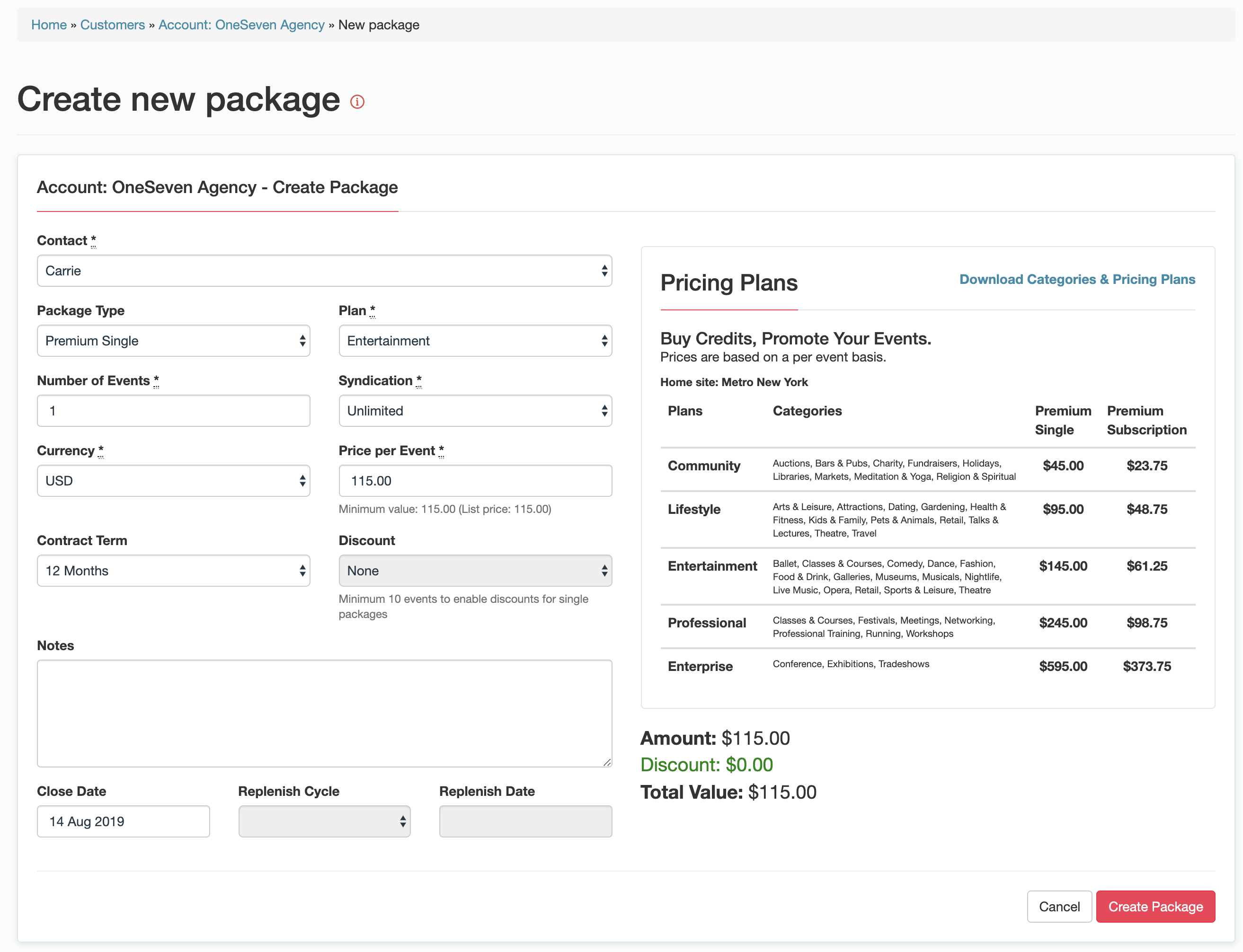
On the right side is the 'Pricing Plan' for your account this includes plans, categories associated to the plans and prices for Premium Singles and Premium Subscriptions.
Lastly the amount, discount and total after discount.
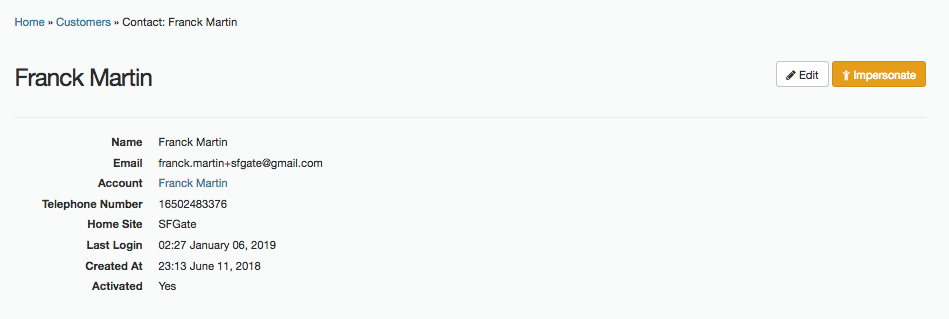
Customer Contact Information
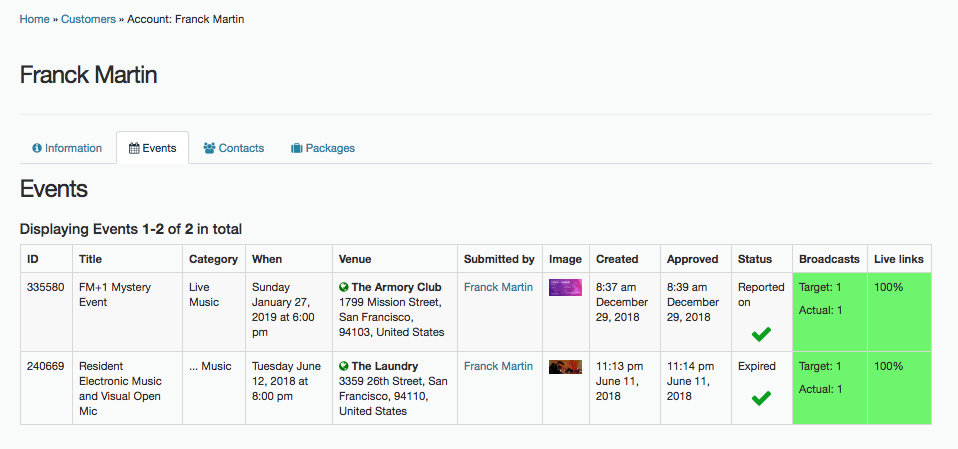
Customer Events
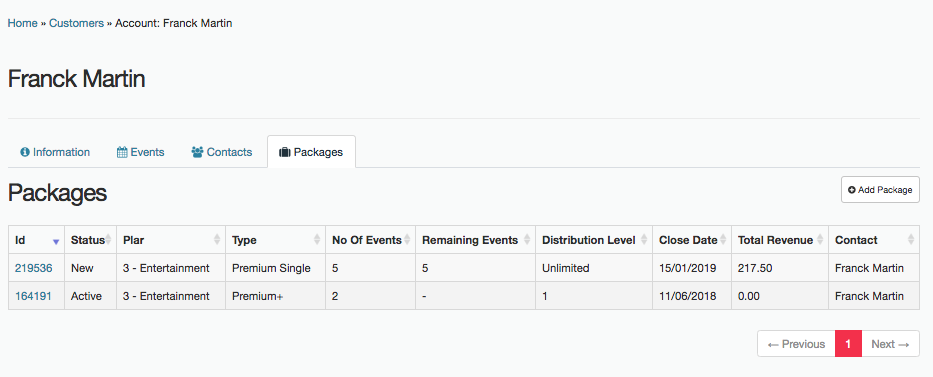
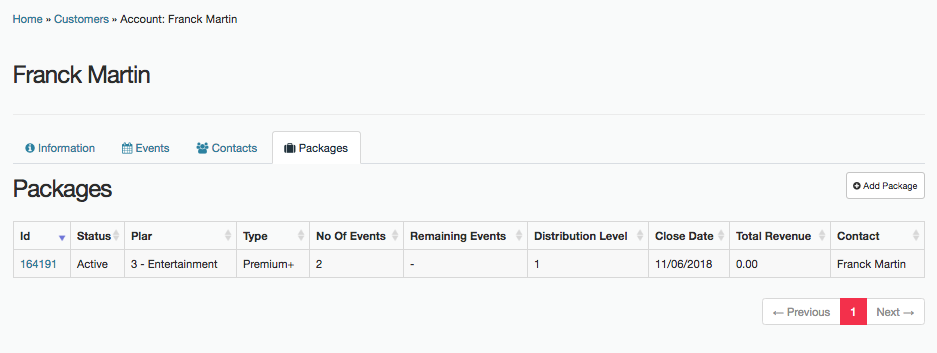
Packages
You can also easily now create your own packages
Complete the information on your sale and simply create package and then activate.
You MUST remember to activate the package
Packages List