Day-of Operations
Last updated: October 21, 2026
Any event organizer will have more than a few things to consider on the day of the event. It is important to consider the plan for handling ticket sales and check-ins on the "day of". Here are just a few of the things to consider:
-
Do you need to limit attendance at the venue?
-
Will people be able to buy tickets with both cash and credit cards at the door?
-
Will there be a reliable network connection for processing sales and scanning tickets?
-
Do you need to know who came to your event so you can market to them later?
Once you know the answer to these questions, then you can decide which of the procedures below will apply to your event's day-of operation. For example, if you need to limit attendance at the venue then you will need to ensure that orders are processed in the system to prevent overselling of tickets (see Process Tickets Orders at the Door) and you may also consider making sure that guests are properly checked in (see Check-In Methods below).If you are unsure of how to set up your operation, or if you have questions of your own that aren't answered here, then make it a point to reach out to our support team for advice.
Process Ticket Orders at the Door
To process orders, you will need either a computer or a mobile device connected to a strong, private WiFi network. When orders are processed, there is an immediate option to check them in after checkout. If you are hoping to prevent tickets from being used more than once then you will want to make sure to check-in tickets so they are marked as used.
Process Ticket Orders in the Admin
Process Ticket Orders in the Mobile App
Check-in Methods
You can scan in these tickets using their unique QR code and the mobile app at the door of your event.
- From the dashboard, expand the "Orders" section (click on the caret).
- Select the date(s) in the Event Dates section to show relevant orders.
- If needed, search for the order by first or last name, email, or order number.
- Click on the "three dots" overflow menu and select "Check In".
- A pop-up will appear with all the tickets available to be checked in.
- Select the tickets to check them in.
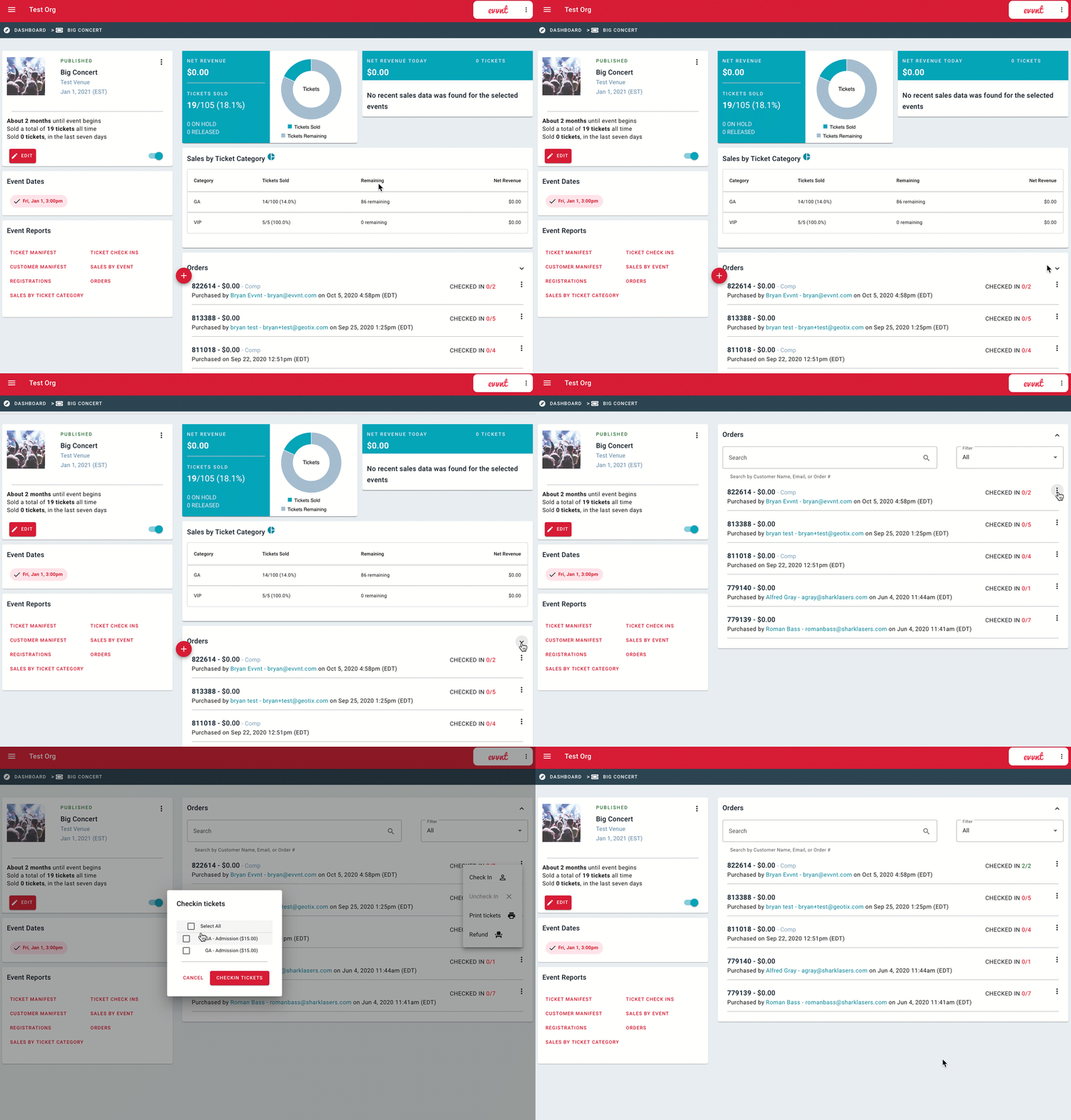
Check-in tickets with paper checklist
- Deselect All
- Choose the date(s) for which you would like the event manifest.
- Click on Event Manifest from the Event Reports section.
- After the report is generated you can export the results to an Excel file and print out a physical copy to use for checking ticket buyers in at your event.
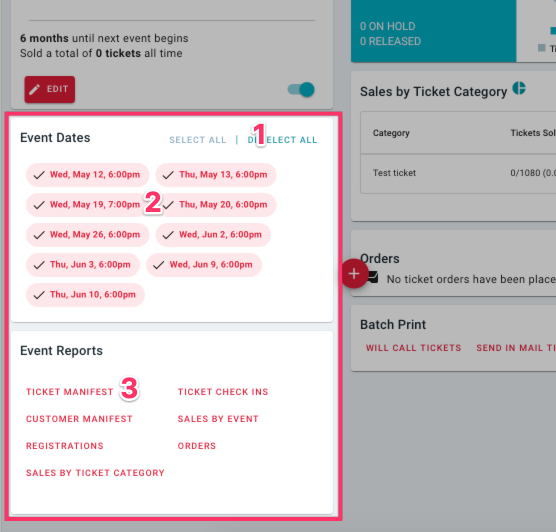
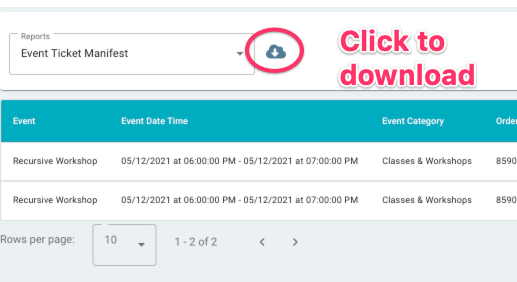
Print Will-Call Tickets
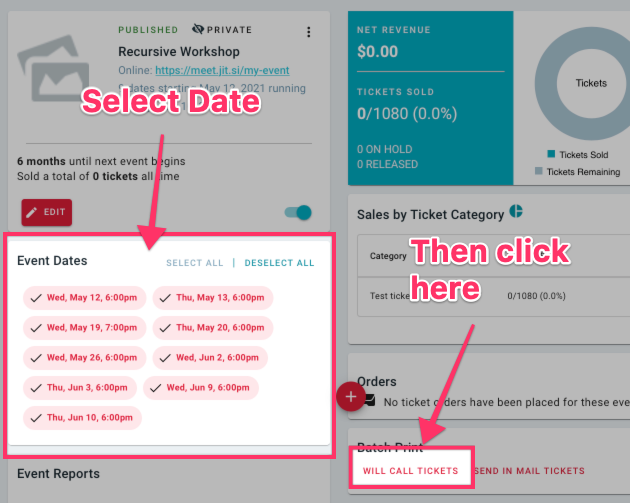
Pre-printing Tickets for Cash Sales
Some event organizers wish to have physical general admission tickets available to be sold for entry to an event. These tickets could be kept at the box office, a "cash only" line at the gate, or even at local businesses to be sold in advance of a larger event. To pre-print tickets from the General Admission category, someone in an organization can create a large order of tickets to be placed on "hold". After sales have ended, the organization can release the hold and then process a cash order based on the number of tickets actually sold.